iCloud Security Explained — Encryption, Advanced Data Protection & Privacy

A comprehensive breakdown of how Apple encrypts your data, what remains vulnerable, and how to properly secure your files before they ever reach the cloud.

Editorial Team Last Updated: March 2024 12 min read
Quick Answer

By default, Apple encrypts iCloud data in transit and at rest, but Apple holds the encryption keys for most services. To achieve true zero-knowledge end-to-end encryption (where Apple cannot see your data), you must manually enable Advanced Data Protection. However, to protect iCloud-synced folders locally on a shared PC or Mac, you need client-side encryption software before the upload occurs.

What do you need help with?
iPhone displaying iCloud Advanced Data Protection settings and end-to-end encryption controls

Understanding iCloud Data Security

When you take a photo, write a note, or save a document to iCloud Drive, Apple applies standard data protection. This means your data is encrypted while it travels to Apple's servers (encryption in transit) and while it sits on those servers (encryption at rest).

Cloud Secure software screen for protecting synchronized cloud storage folders

However, under Standard Data Protection, Apple retains the cryptographic keys required to decrypt this data. This allows them to help you recover your account if you forget your password, but it also means Apple—or law enforcement, or a skilled attacker who breaches Apple's systems—could potentially access your files.

"Encryption in the cloud only protects you if you are the sole owner of the keys."

This is why Apple introduced Advanced Data Protection (ADP) and robust iCloud Keychain security features. Furthermore, debates over privacy have intensified, notably when Apple has pulled iCloud encryption from the UK amid government backdoor demands—highlighting the critical difference between provider-managed encryption and true end-to-end encryption.

Apple Ecosystem Data Risk Calculator

Not everyone needs the same level of iCloud security. Use this interactive tool to determine your risk profile based on your cloud storage habits.

Sensitive personal documents protected within an encrypted digital workspace
Yes
No
Yes, others use the same computer.
No, my devices are strictly personal.
Yes
No
Step-by-step methods

How to Secure Your iCloud Files

Achieving total cloud storage security requires a multi-layered approach. Depending on your needs, here is how you can protect files in the cloud, restrict cloud folder access, and ensure zero-knowledge privacy.

Comparison of encrypted backup platforms protecting cloud-stored files

Your Device

iCloud Servers
Difficulty: Moderate

Method 1: Enable Apple Advanced Data Protection

Turning on Advanced Data Protection ensures that your iCloud data is end-to-end encrypted. When asked "apple advanced data protection what data is end-to-end encrypted?", the answer includes iCloud Backup, Photos, Notes, iCloud Drive, Reminders, Safari Bookmarks, Siri Shortcuts, Voice Memos, and Wallet Passes.

Apple Notes lock interface demonstrating protected private notes
  • How it works: Apple discards their copy of your encryption keys. Only your trusted devices can decrypt the data.
  • Pros: Built natively into iOS/macOS; highly secure against server breaches.
  • Limitations: If you lose your password and recovery key, Apple cannot help you recover your data. It does not encrypt iCloud Mail, Contacts, or Calendars due to global interoperability standards.
Difficulty: Advanced

Method 2: Client-Side File Encryption (Encrypt Before Upload)

If you sync iCloud Drive to a Mac or Windows PC, Advanced Data Protection decrypts those files as soon as they sync to your local hard drive. If someone accesses your unlocked PC, they can read your iCloud files.

To fix this, you need data encryption software for database protection and client data protection. This involves locking the local folder before the sync engine reads it. Tools like Cloud Secure or macOS FileVault are used here.

Secure folder synchronization protecting files before cloud upload
Client-side encryption ensures that even if your physical computer is stolen, or a roommate opens your laptop, your local synced cloud folders remain impenetrable.
Difficulty: Moderate

Method 3: Hardware Security Keys for Apple ID

To prevent account takeover, you can use a physical USB device. Many users ask: "can a security key be any usb?" or "can any usb be used as a security key?"

The answer is no. You cannot use a regular USB as a security key for Apple ID natively unless it is FIDO-certified (like a YubiKey). You cannot simply format a generic thumb drive to act as a hardware token for iCloud without specialized enterprise software. To secure your account, you must purchase a dedicated FIDO2 key, insert the security key into the USB port, and register it via your iPhone or Mac settings under "Security Keys."

USB hardware security key used for stronger Apple ID account protection

Comparing iCloud Security Approaches

Security Method Where Data is Protected Apple Has Access? Protects Local PC Folders? Best For
Standard iCloud Security In transit & on Apple servers Yes No Basic users wanting easy account recovery
Advanced Data Protection End-to-end (Cloud & Transit) No No Privacy advocates protecting cloud data
Mac FileVault / BitLocker Full Local Disk No Yes (Full System) Laptops vulnerable to physical theft
Client-Side Folder Lock (Cloud Secure) Specific Local Cloud Folders No Yes Shared computers, local privacy for synced drives
Private files synchronizing securely between a local device and cloud storage

The Missing Layer: Local Protection for Cloud Folders

Apple Advanced Data Protection secures your files on Apple's servers. But if you use iCloud Drive on a Windows PC or Mac, those files are downloaded and sit exposed on your hard drive.

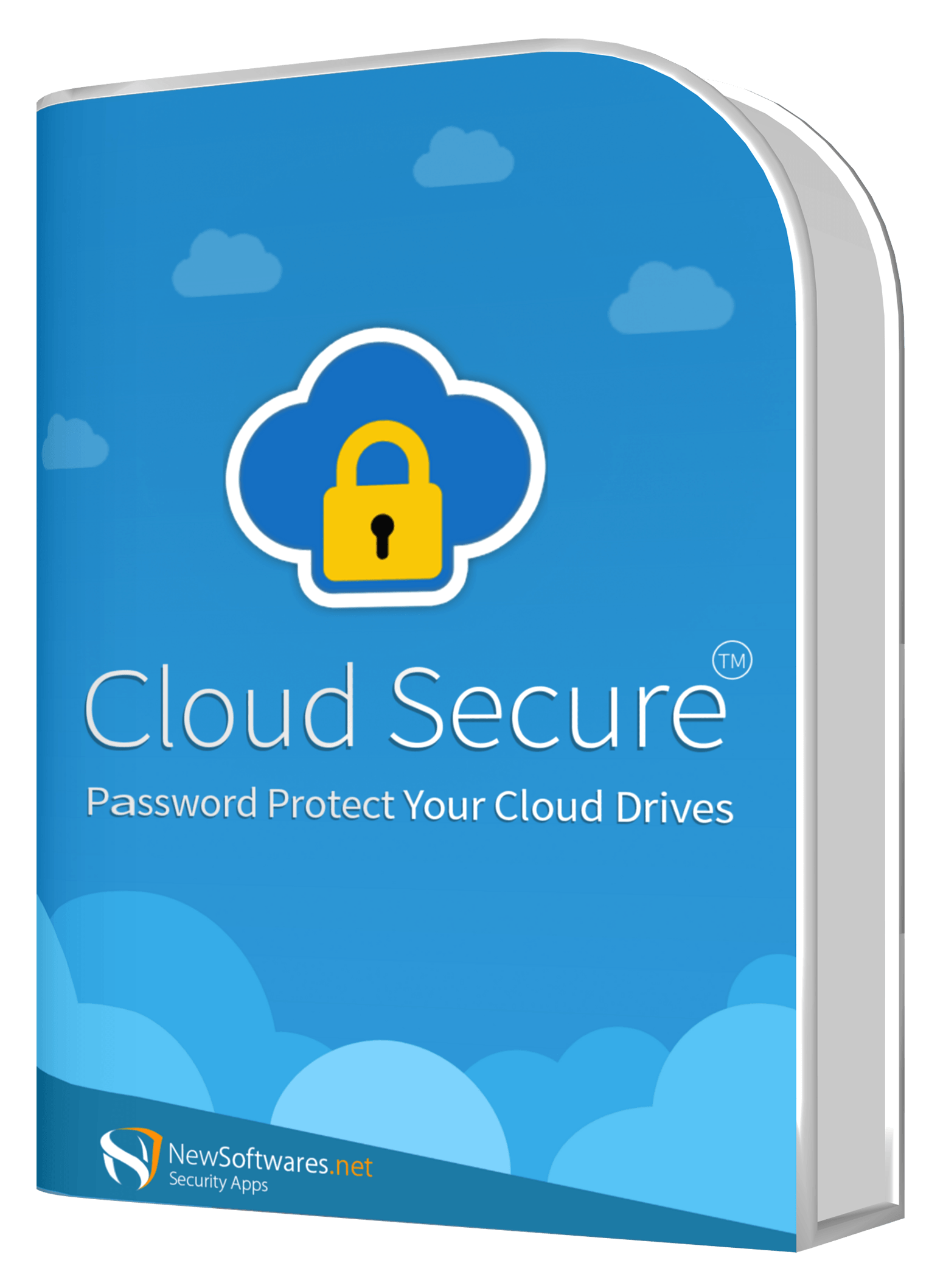
We recommend Cloud Secure to bridge this gap. Instead of juggling different security settings for iCloud, Google Drive, OneDrive, and Box, this tool centralizes them. You establish one master password to restrict local access across every cloud directory simultaneously.

Zero-knowledge local lock Unified dashboard management Uninterrupted background syncing

Cloud Secure is developed by NewSoftwares.net. Compatible with Windows 11, 10, 8, and 7.

Cloud Secure software boxshot for password-protecting synchronized cloud folders
iCloud Drive Locked
Google Drive Locked
Box Account Unlocked

The Lifecycle of a Secure Cloud File

To understand what data is end-to-end encrypted and how local tools integrate, it helps to track a file from your desktop to the cloud.

Cross-platform synchronization linking protected files across computers and cloud services

1. Local Creation & Protection

You create a sensitive document on your PC. Using a tool like Cloud Secure, the local folder is password-protected, hiding it from unauthorized local users.

2. Uninterrupted Background Synchronization

Even while the directory remains invisible and locked on your desktop, the sync engine continues to communicate with Apple, Microsoft, or Google servers. Your changes upload silently.

3. At-Rest End-to-End Encryption

Once synced, if you are using Advanced Data Protection, the file is encrypted at rest using keys derived solely from your device. The provider cannot read it.

4. Access via Unified Interface

When you need to review the document locally, you do not have to unhide the folder for the entire OS. Cloud Secure provides a secure viewing portal to access your work seamlessly.

Step by step

How to Encrypt Files Before Uploading to Cloud Storage

Cloud Secure desktop dashboard showing supported cloud storage services and lock controls

If you want to secure cloud files on a shared PC, here is how to lock your local iCloud or Google Drive folder from unauthorized viewing.

  1. Download and Install: Run the setup for Cloud Secure on your Windows PC. The software automatically scans your system to locate existing cloud storage clients.
  2. Set a Master Password: Choose a strong, memorable phrase. This single password will serve as the gateway to manage all your connected cloud directories.
  3. Activate Protection: In the dashboard, locate the cloud service you wish to protect (e.g., iCloud Drive or Dropbox) and toggle the lock on. The folder immediately vanishes from standard Windows Explorer views.
  4. Install Missing Clients: If the software detects you are missing a common service like OneDrive or Box, it provides a direct installation shortcut from within the dashboard.
  5. Secure Viewing: Instead of completely disabling protection to view a document, you can use the application's built-in viewing interface. This temporarily grants you access to your files without exposing the directory to the rest of the operating system.
Download Cloud Secure →

Troubleshooting & Advanced Details

Review solutions for common sync issues, password recovery methods, and technical benchmarks.

Encrypted data protection vault used for secure account recovery and local file access

Unlike Apple's native Advanced Data Protection—which completely cuts you off from your data if you lose your credentials and recovery keys—local tools often build in a safety net. For registered users of Cloud Secure, entering a valid license serial number acts as an emergency master key. This restores access to the locked local directories if the primary password is ever forgotten.

If you see an error that your device couldn't sync iCloud data to continue using iCloud to sync your end-to-end encrypted data, it usually means a device on your Apple ID is running an outdated OS that does not support Advanced Data Protection. You must either update all devices (macOS 13.1+, iOS 16.2+) or remove older devices from your Apple ID account to resume syncing.

If you perform a factory reset, you lose the local cryptographic keys stored in the Secure Enclave. If you have Advanced Data Protection turned on, you must have a secondary trusted device or a printed Recovery Key to restore your iCloud Backup. Without it, the data is permanently inaccessible because Apple does not possess the keys.

Apple Silicon (M1/M2/M3) features dedicated hardware for AES encryption. Benchmarks typically show AES encryption speeds exceeding 4 to 5 GB/s. This is why enabling Mac FileVault disk encryption has virtually zero noticeable impact on daily performance, and why you should absolutely use it alongside iCloud E2EE.

Choose Your Protection Level

Free Trial
Full Version
Cloud Secure application screen illustrating cloud folder protection options

Cloud Secure (Trial)

Free

Test the local locking capabilities on your PC.

  • ✓ One master password setup
  • ✓ Supports iCloud, Dropbox, OneDrive & Box
  • ✓ Uninterrupted background syncing
Download Free Trial →

Cloud Secure (Full License)

$39.95

Permanent protection for local cloud directories.

  • ✓ Removes all trial limitations
  • ✓ Master key recovery functionality
  • ✓ Free lifetime software updates
Get the Full Version →

Frequently Asked Questions

Smartphone shield protecting iCloud photos, notes, and synced personal data

Ecosystem & Account

Common questions regarding Apple ID settings, data retention, and cloud sharing permissions.

Are iCloud notes encrypted?

Yes. Under standard protection, they are encrypted in transit and at rest, but Apple holds the keys. If you enable Advanced Data Protection, your iCloud Notes become fully end-to-end encrypted.

Yes, iCloud Photos benefit from encryption in transit and at rest. Like Notes, they only receive true end-to-end encryption if you manually opt into Advanced Data Protection.

No. You cannot use any generic USB drive as a security key for Apple ID. You must purchase a FIDO-compliant hardware security key (like YubiKey) and insert the security key into the USB port to register it.

It depends on the provider. While almost all providers use transit and at-rest encryption, services like standard OneDrive or Google Drive retain access to decryption keys. Zero-knowledge encryption means only you hold the keys.

Audit your cloud sharing permissions regularly, revoke access to shared cloud folders when collaboration ends, and use client-side tools like Cloud Secure on shared workstations to prevent local access.

Other Security Tools from the Developer

Cloud Secure is developed by NewSoftwares.net. Consider these related privacy tools:

Layered security shield protecting files, folders, drives, and mobile data

Our Verdict on iCloud Security

Apple provides one of the strongest consumer privacy ecosystems available today, provided you enable Advanced Data Protection. However, cloud security is only as strong as its weakest link—which is often the local device syncing the files.

If you use iCloud Drive, Dropbox, or Google Drive on a Windows machine, bridging the gap with local folder locking is essential. We recommend Cloud Secure to ensure true privacy from end to end without disrupting your workflow.

Try Cloud Secure free → Get the full version →
```eof